Tutorial: Filters
Introduction
After using labels, ratings, and picked/unpicked flags to organize your Studio Wall's items, filters help you visualize them in different ways.Filter bar
At the bottom of the Studio Wall you'll find the filter bar:

- Labels - six colored squares, white, red, yellow, etc
- Rating - a ban () symbol followed by 5 stars (/ )
- Flag - a pennant ()/ ) symbol.
Filters combine!
It's important to know that these filters combine in an "and" fashion. For example, if you've selected the "yellow" label and 3 stars then only items with yellow labels and a rating of 3 stars or more will show on the Studio Wall.Filtering by label
To show items with a given label click on it in the filter bar. For example, to see items with a yellow label click on the yellow sqaure. Now, only items with yellow labels will show. If no items show, then no items had a yellow label. To clear the yellow filter, click on it again, or click on the white square to clear the current filter. (The currently selected label will have a black border around it).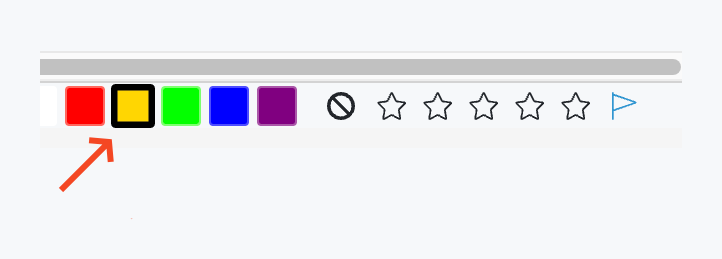
Filtering by rating
To show items with a rating of n stars or more (where n is number from 1 - 5), click on the nth star in the filter.
Filtering by flag
To show items which are flagged as "picked", click on the pennant icon ().